Adding New Tasks
Opening the task planning window
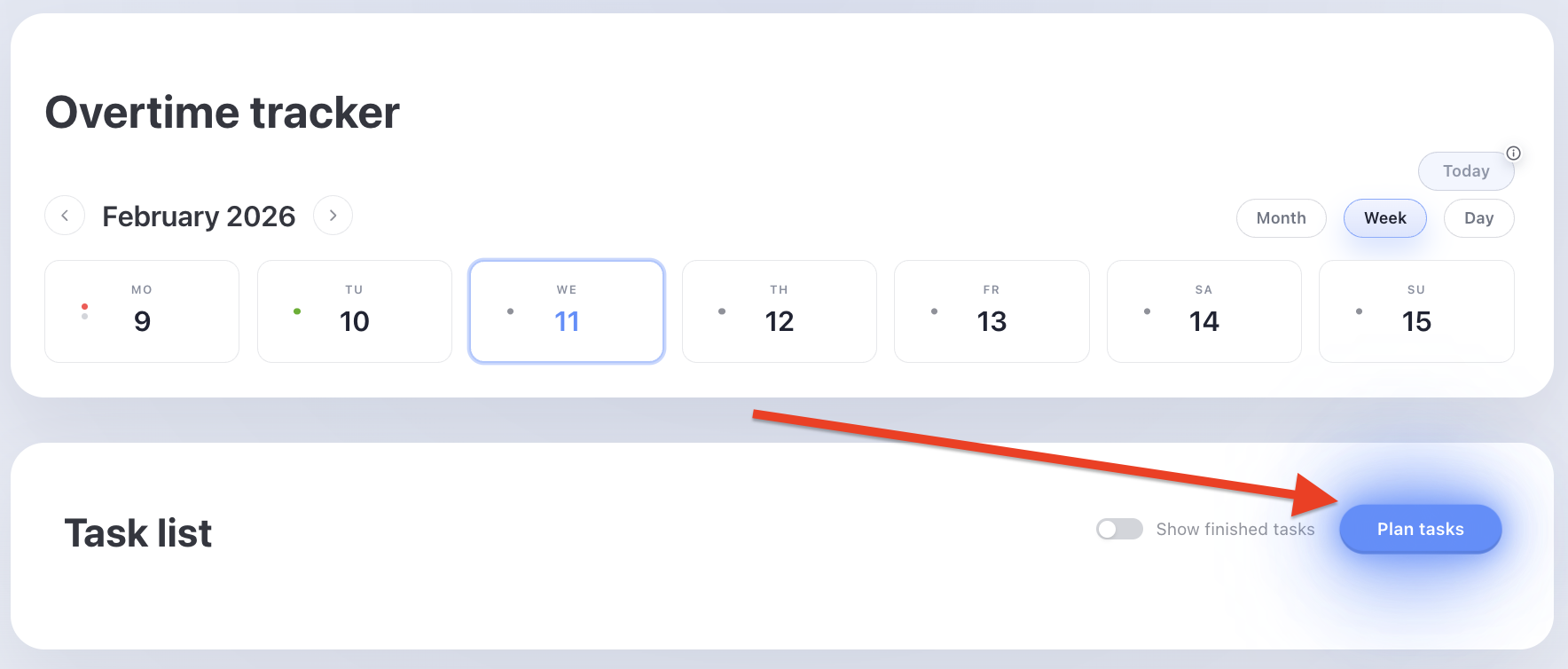
To start planning, click the
“Schedule tasks” button
Adding tasks to your daily plan
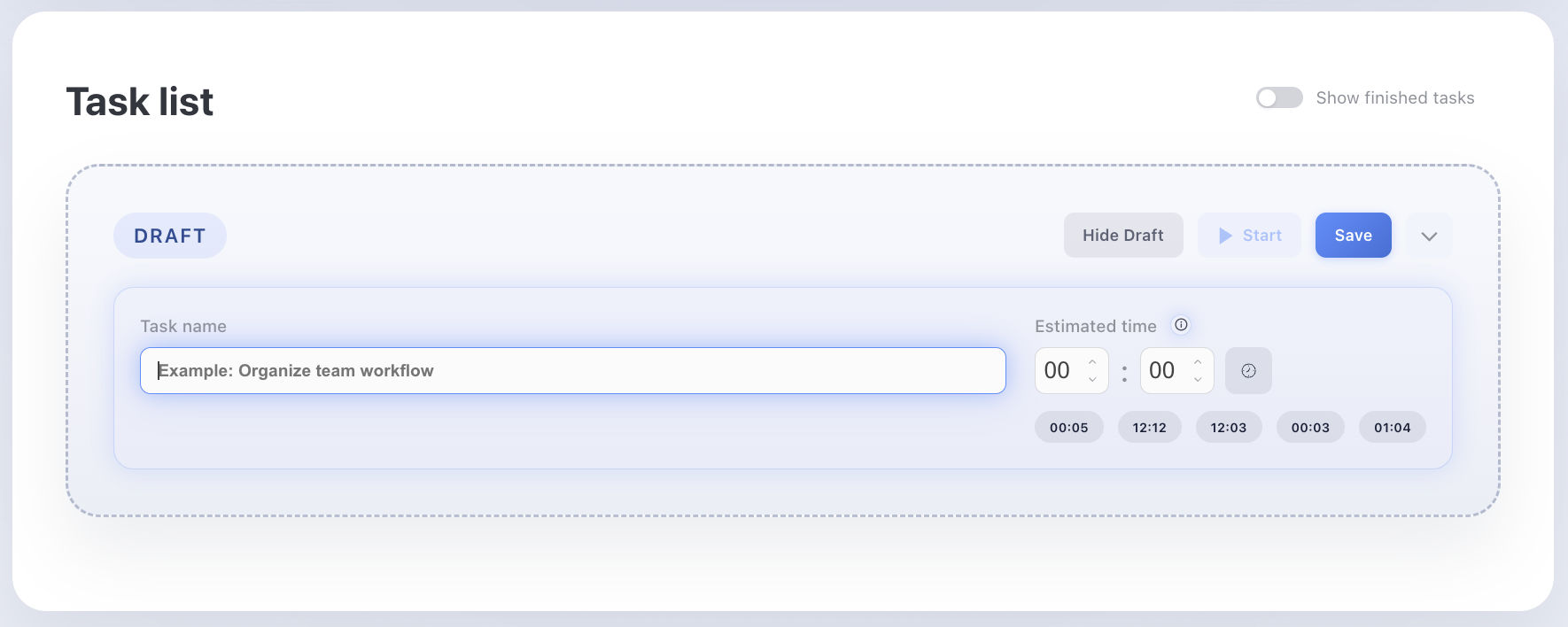
- Task title – a short description of your task
- Planned time – the time within which the task should be completed
You can simply type in task titles and press Enter

Additional parameters
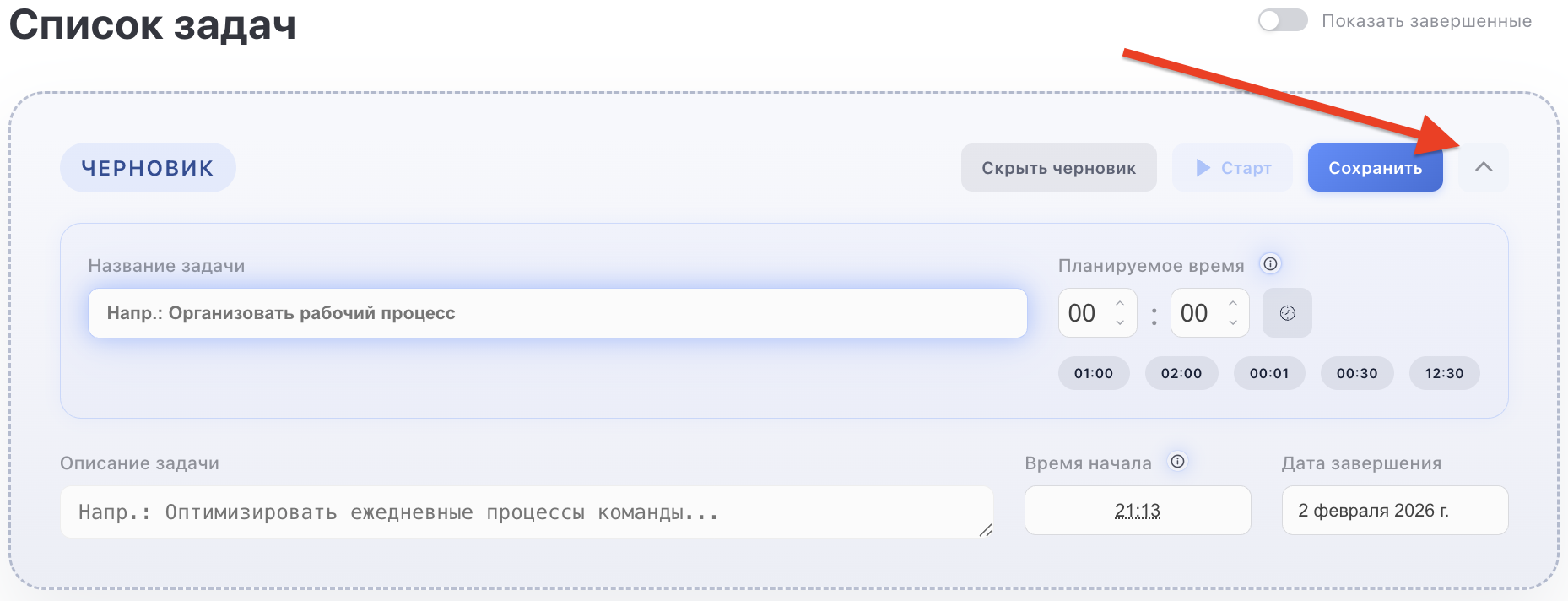
Expand the card to open additional fields.
They are not required, but can help you plan more accurately:
- Task description – additional notes about the task
- Start time – fill in this field if the task is already in progress but you did not have time to plan it in advance and start the timer.
- End date – fill this in if the task needs to be completed over several days.
The task will automatically repeat until the date selected in this field.
Planning time to complete a task
There are several ways to choose the time for a task:
- By manually clicking the arrows
- In a separate window – convenient on a touchscreen
- By typing the time on your keyboard
- By selecting from options used in previous tasks (option buttons)
Finishing planning

Once your task list is ready, you can hide the task planning window.